Managing your students
The student card: upcoming lessons, history, timezone, login and PIN, chat and removal.
Click a name on the Students page to open their card.
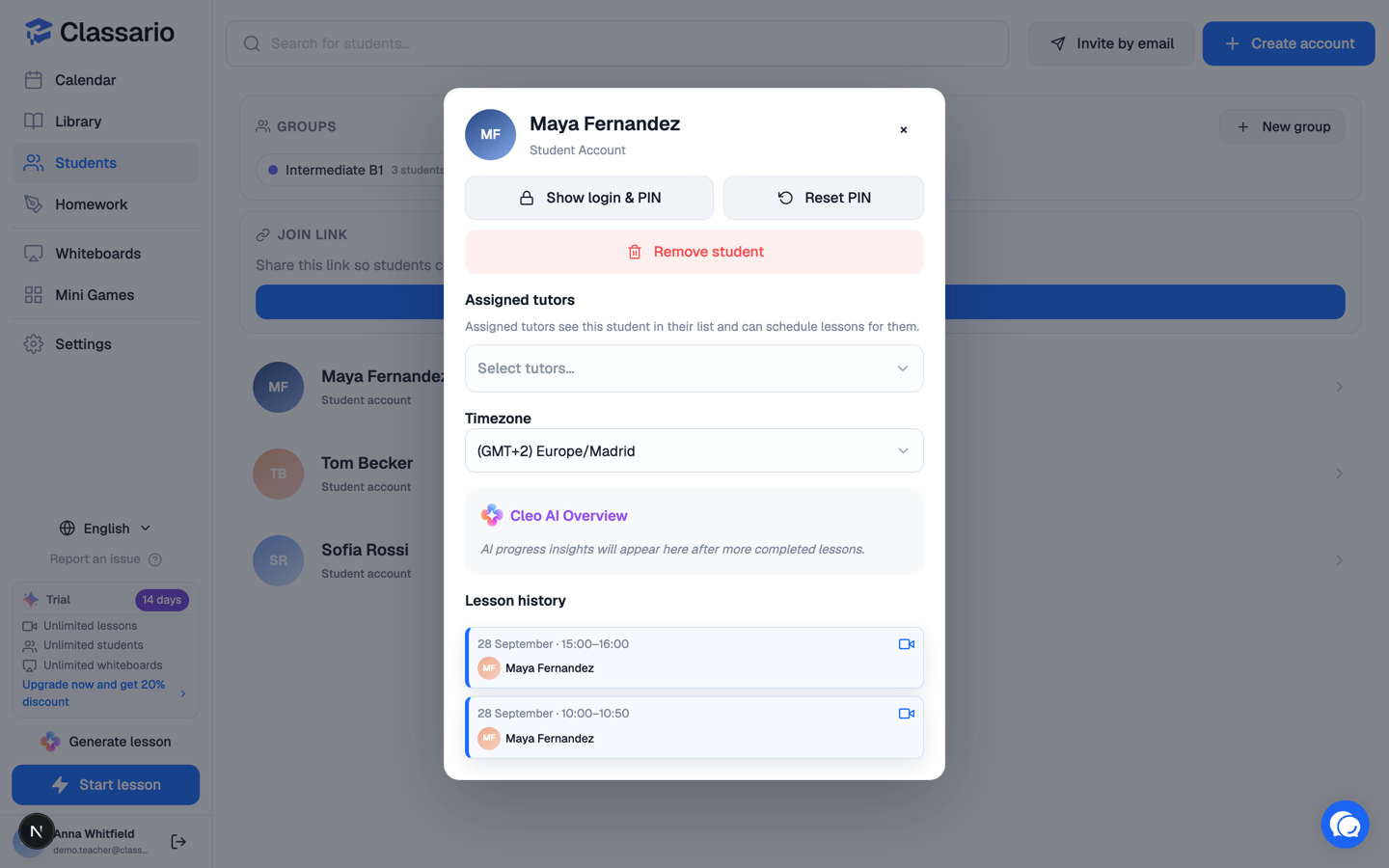
What is on it
- Show login & PIN — for an account you created, reveals the login and 6-digit PIN so you can tell a student who has forgotten. Reset PIN issues a new one and retires the old.
- Timezone — set it so lessons appear at their local time even before their first sign-in. Students who sign in on their own have it captured automatically.
- Upcoming lessons and Lesson history — everything scheduled and everything taught, each clickable.
- Schedule lesson — opens the lesson dialog with this student already selected.
- Start chat — opens a direct conversation.
- Cleo AI Overview — a placeholder for progress insights, which fills in as more lessons are completed.
- Remove student — takes away their access to the space. Owners and admins only.
Finding people
Search for students… filters the list. Groups are listed above it, so you can jump to a whole class.
Deactivated and reactivated accounts
An account that has been closed shows as Deactivated account, with Reactivate account next to it. The exception: if the person closed the account themselves, only they can reopen it, and Classario says so rather than failing quietly.
All plans include unlimited students. Adding another one never costs more.
Related
- Inviting your first students
- Student groups