Element types: the full list

All 26 building blocks you can put in a material, what each one does, and which plan includes it.

Press Add element in the editor to open the picker. You can bookmark the ones you use most so they sit at the top next time.
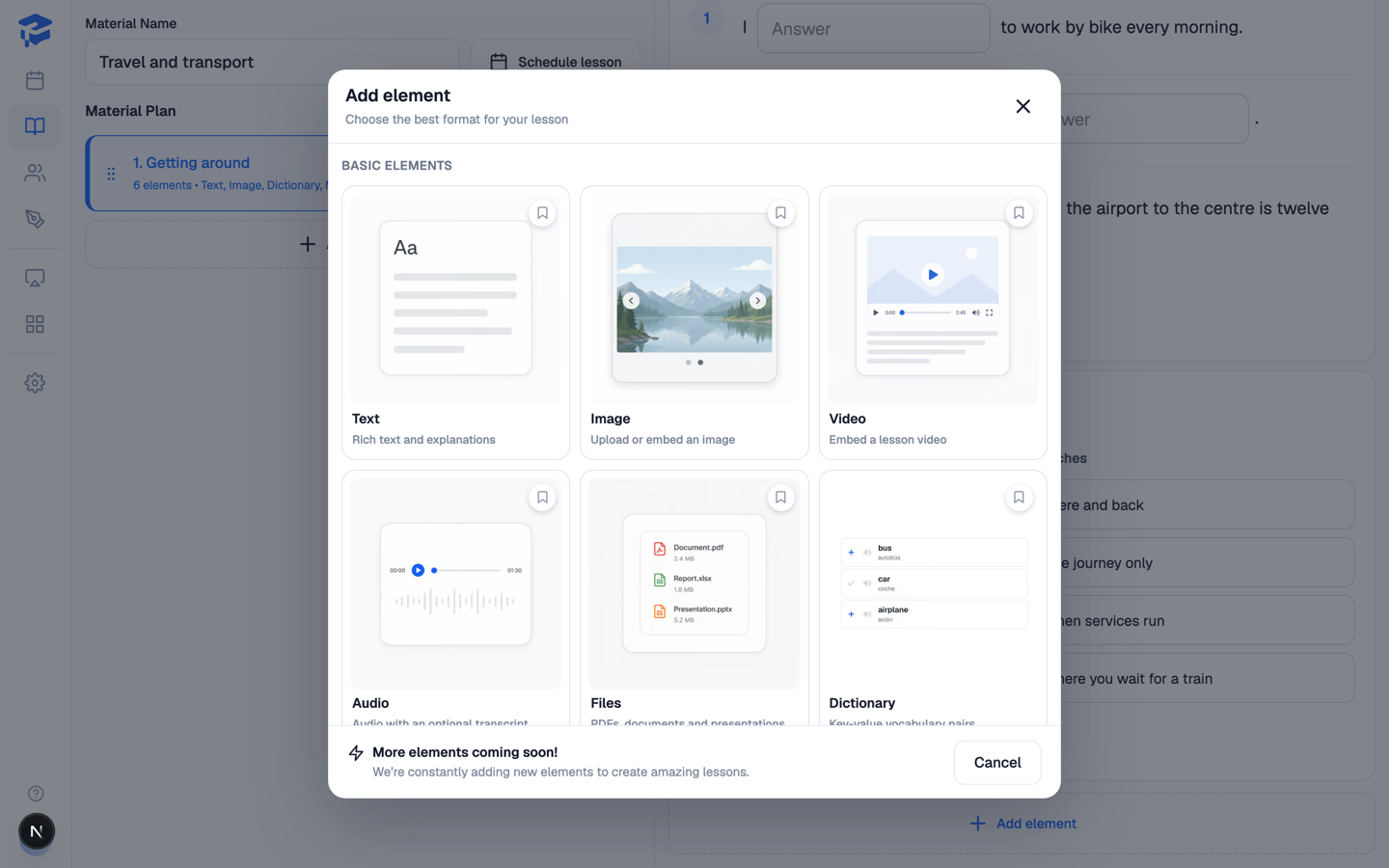
The Add element picker showing basic element types

Basic elements — on every plan

ElementWhat it does
TextRich text and explanations, with formatting and formulas.
ImageUpload or embed one or more images.
VideoEmbed a lesson video.
AudioAudio with an optional transcript.
FilesPDFs, documents and presentations.
DictionaryWord and translation pairs, with pronunciation.
NoteA highlighted note — can be hidden from students, for your own reminders.
EmbedMiro, Wordwall, Quizlet, Genially and similar.
LinkA button that opens an external page.

Interactive exercises — Pro and School

ElementWhat students do
Multiple choicePick one or more correct options.
Open questionWrite a free-form answer.
Record audioRecord their voice for you to listen to.
Cloze with dropdownsChoose the right option for each gap in a text.
True / FalseClassify statements as true, false or not stated.
Fill in the blankType the missing words.
Match wordsConnect two columns.
FlashcardsStudy front-and-back card pairs.
Gap-fill with word bankDrag words from a bank into gaps.
Arrange by columnsSort items into named categories.
Word orderingBuild sentences in the correct order.
Numeric answerAnswer with a number, with optional tolerance and unit.
Match words to imagesPut each word under its picture.
UnscrambleReorder shuffled letters to spell a word.
Put text in orderArrange sentences or paragraphs correctly.
Enter the word for the imageType the word that matches a picture.
Select the word for the imageChoose the word that matches a picture.

On the Lite plan you get the basic elements; the interactive exercises are part of Pro. During your trial you can use all of them.