Scheduling a lesson
Every field in the Schedule lesson dialog, plus editing, cancelling and deleting lessons afterwards.
For owners, admins and tutors.
Create one
On the Calendar, press New lesson, or click the empty slot you want — clicking a slot pre-fills the date and time.
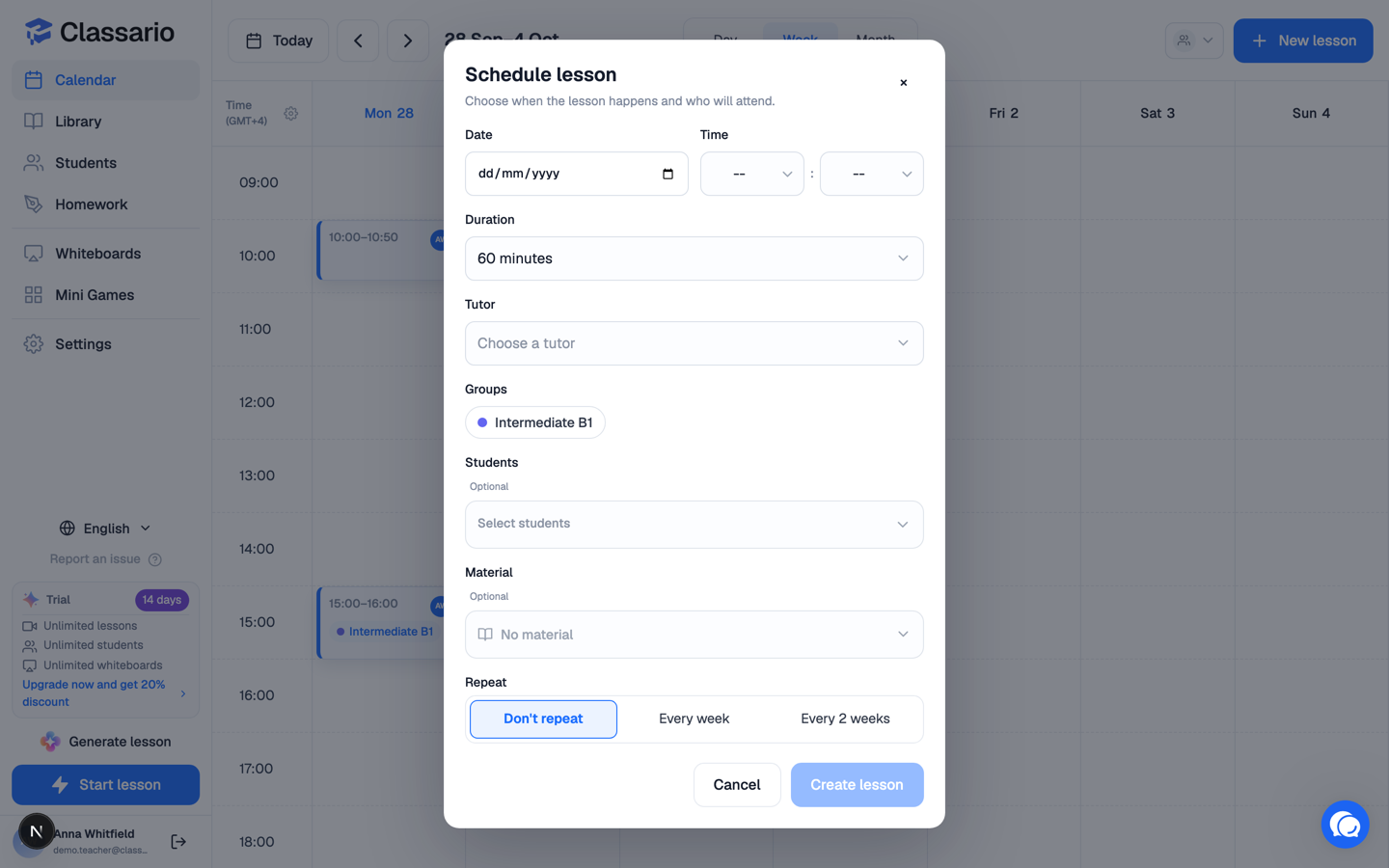
The fields
Press Create lesson. It appears on the calendar immediately, and on each invited student's calendar too.
No students yet? You can still create the lesson — Classario says so and lets you add people later.
Editing a lesson
Click the lesson, then Edit lesson. Every field can change, including the material and who attends.
Cancelling vs deleting
- Cancel this lesson — the lesson stays on the calendar, marked cancelled, so the history is intact.
- Delete this lesson — removes it from the calendar permanently. This cannot be undone.
For a lesson that is part of a series, both actions also offer a …& following version that applies to this lesson and every later one.
Duration presets
Owners and admins can set the durations the dropdown offers in Settings → Platform Settings → Lesson durations (up to eight, between 5 and 600 minutes).
Related
- Recurring lessons
- Calendar views and time settings
- Starting a lesson